Clicky

  • About
    • Affiliate Disclosure
    • Ballen Academy
    • Contact Us
    • Privacy Policy
    • Youtube
  • Lori Ballen’s Blog
    • Affiliate Marketing Strategies
    • Blogging Strategies
    • Content Marketing
    • Pinterest
    • Side Hustles
  • Shop
    • Lori’s eBooks
    • Lori’s Tools
Sunday, June 21, 2026
No Result
View All Result
COACHING
Lori Ballen
  • About
    • Affiliate Disclosure
    • Ballen Academy
    • Contact Us
    • Privacy Policy
    • Youtube
  • Lori Ballen’s Blog
    • Affiliate Marketing Strategies
    • Blogging Strategies
    • Content Marketing
    • Pinterest
    • Side Hustles
  • Shop
    • Lori’s eBooks
    • Lori’s Tools
No Result
View All Result
Lori Ballen
No Result
View All Result
Home Pinterest

How to Schedule Pinterest Pins with Tailwind (Step-by-Step)

How to Schedule Pinterest Pins with Tailwind (Step-by-Step)

This website contains affiliate links. Some products are gifted by the brand. As an Amazon Associate, I earn from qualifying purchases. The content on this website was created with the help of AI.

While I share money-making strategies, nothing is "typical", and outcomes are based on each individual. There are no guarantees.

Scheduling Pinterest pins with Tailwind is the operational step that turns Pinterest from a daily manual task into an automated system. This is the step-by-step guide to getting it set up, loading your first pins, and building a workflow you can sustain long-term.

Step 1: Create Your Tailwind Account and Connect Pinterest

Go to tailwindapp.com and create an account. You will be prompted to connect your Pinterest business account during setup. Tailwind requests permission to access your Pinterest account on your behalf, which it uses to schedule and publish pins automatically. Grant these permissions. Tailwind is a Pinterest-approved partner, meaning this connection is explicitly sanctioned by Pinterest and operates through their official API. It will not put your account at risk the way some unauthorized third-party tools might.

If you do not yet have a Pinterest business account, create one at business.pinterest.com before setting up Tailwind. Business accounts are required for analytics access and are free to create.

Step 2: Configure Your SmartSchedule

After connecting Pinterest, navigate to the Publisher section and access your SmartSchedule settings. Tailwind analyzes your Pinterest account’s audience activity data and identifies the times when your followers and potential followers are most active on Pinterest. It populates your posting schedule with those optimal time slots.

Select how many times per day you want to post. For accounts building Pinterest traffic, five to ten pins per day is a solid baseline. More active accounts post ten to twenty. Tailwind builds a daily schedule of time slots at the optimal hours. You can manually adjust the time slots if you have a reason to, but the SmartSchedule defaults are well-calibrated based on your specific audience data.

Step 3: Create Your Pins

Before you can schedule anything, you need pins to schedule. Start with keyword research in Pinclicks to identify which keywords to target. Then create pin images using Ideogram for original AI-generated backgrounds and Canva for text overlay and sizing at 1000×1500 pixels. Batch this process. Create an entire week’s worth of pins in one session rather than creating one pin per day.

For each pin you need: the finished image file, the destination URL, a keyword-optimized title, a keyword-natural description with affiliate disclosure if applicable, and the board you want to post it to. Having all of these ready before you open Tailwind makes the loading process significantly faster.

Step 4: Add Pins to Your Queue

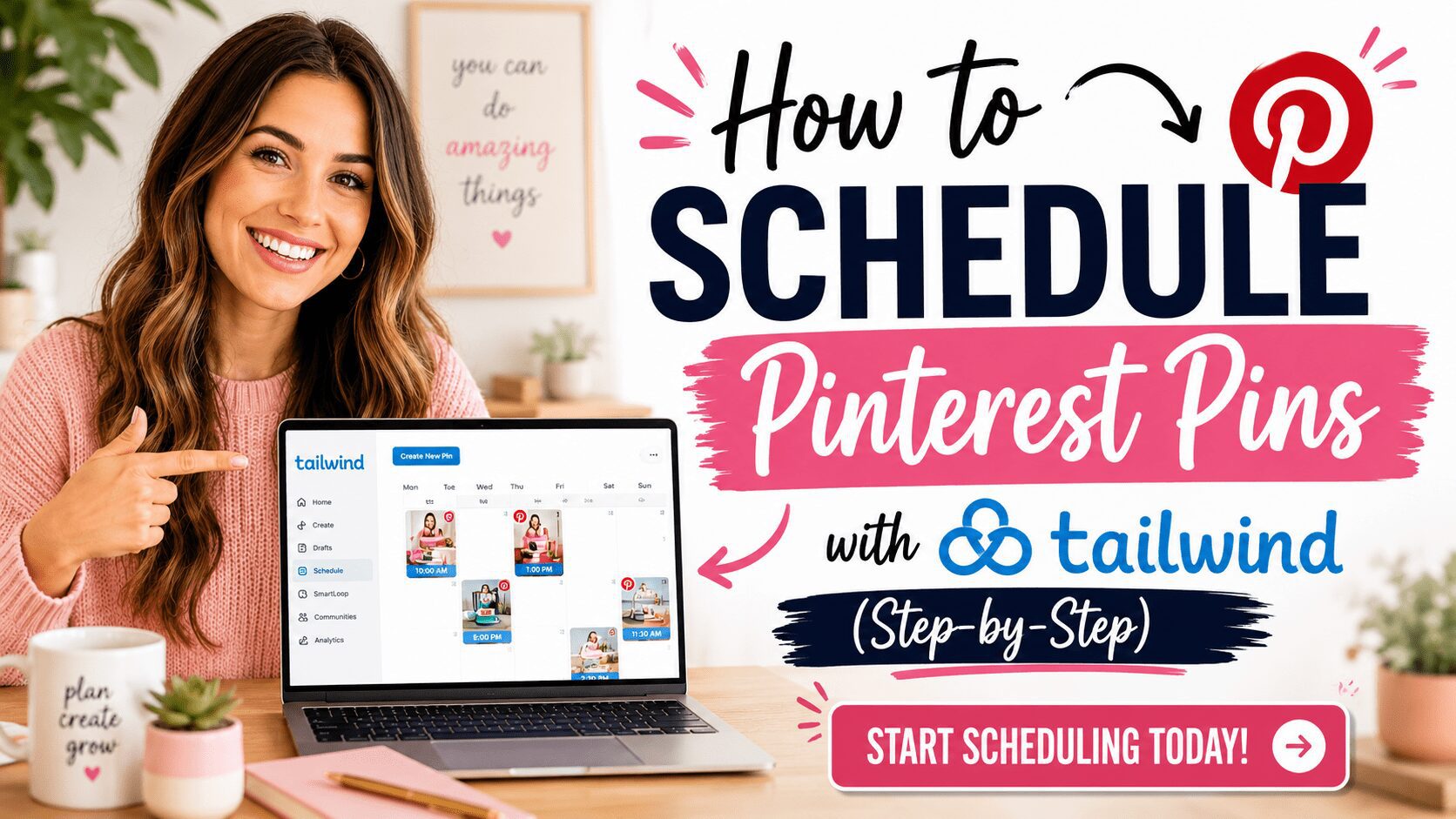
A woman with long hair smiles and points at a computer screen displaying a scheduling tool for Pinterest pins using Tailwind. The text overlay reads 'How to Schedule Pinterest Pins with Tailwind (Step-by-Step)' along with a call to action to start scheduling.

In Tailwind’s Publisher, click Create New Pin. Upload your pin image, add the destination URL, write your keyword-optimized title and description, select the board to pin to, and click Add to Queue. The pin slots automatically into the next available SmartSchedule time slot. Repeat for every pin in your batch session.

Tailwind also offers a browser extension that lets you draft pins while browsing your own website. When you are on a page you want to pin, the extension lets you select an image from that page and create a pin draft that goes directly into your Tailwind queue. This is useful for quickly pinning content from your blog without going back to the Tailwind dashboard manually.

Step 5: Review Your Queue Before Saving

After loading a batch of pins, review the queue to check the publishing order and board assignments. Confirm that you are not publishing the same destination URL multiple times within a short window, and that pins going to the same board are spaced apart rather than stacked consecutively. Pinterest responds negatively to what looks like spam behavior, and consecutive identical-URL pins to the same board in quick succession can suppress distribution.

Tailwind’s queue view shows you a calendar of everything scheduled and when it will publish. Use this to verify that your content is distributed evenly across the days and that the board variety looks natural.

Step 6: Monitor and Refill the Queue

Tailwind shows you how many days of pins you have remaining in your queue. The goal is to never let the queue run empty. An empty queue means Pinterest stops seeing regular activity from your account, which can suppress your distribution even when you start posting again. Check your queue count weekly and schedule a batch session before the queue drops below one week of content.

For most creators posting five to ten pins per day, a batch session producing thirty to fifty pins covers three to seven days. One batch session per week is sustainable and keeps the queue full without requiring daily effort. This is the operational cadence that makes Pinterest work as a background traffic source rather than a daily manual job.

Step 7: Use Tailwind Communities

After your queue is set up, explore Tailwind’s Communities section. Search for communities in your content niche and join ones that are active with a healthy reshare ratio. Submit your best-optimized pins to relevant communities. Reshare other members’ content at the same ratio you submit. Communities provide additional distribution for your pins beyond what search and your own follower base generate, which is particularly valuable in the early months before your account has built significant search authority.


This post contains affiliate links. I may earn a commission if you sign up or purchase through my links, at no extra cost to you.

Share this:

  • Share on Facebook (Opens in new window) Facebook
  • Share on X (Opens in new window) X

Like this:

Like Loading…

RelatedPosts

My Pinterest Traffic System

My Pinterest SEO System

The 6-Step Pinterest Marketing Strategy (The BALLEN Method)

The Pinterest Creator Tech Stack: 3 Tools That Run My Strategy

Is Pinterest Still Worth It in 2026? The Honest Answer

ShareTweet
Previous Post

How Much Substack REALLY Pays Writers

Next Post

My Amazon Affiliate Marketing Routine: What I Check and What Actually Converts

Lori Ballen

Lori Ballen

I'm a full-time blogger. I teach entrepreneurs how to get more website traffic, generate leads, and make more money online. This website contains affiliate links that benefit me. Take a Course Get a Website Try my Tools

Related Posts

My Pinterest Traffic System
Pinterest

My Pinterest Traffic System

My Pinterest SEO System
Pinterest

My Pinterest SEO System

The 6-Step Pinterest Marketing Strategy (The BALLEN Method)
Pinterest

The 6-Step Pinterest Marketing Strategy (The BALLEN Method)

The Pinterest Creator Tech Stack: 3 Tools That Run My Strategy
Pinterest

The Pinterest Creator Tech Stack: 3 Tools That Run My Strategy

Next Post
My Amazon Affiliate Marketing Routine: What I Check and What Actually Converts

My Amazon Affiliate Marketing Routine: What I Check and What Actually Converts

My Substack Banner and Cover Photo Setup: What I Wish I’d Known When I Started

My Substack Banner and Cover Photo Setup: What I Wish I'd Known When I Started

How to Build a Digital Product Business From Scratch

Leave a ReplyCancel reply

This site uses Akismet to reduce spam. Learn how your comment data is processed.

No Result
View All Result
  • About
    • Affiliate Disclosure
    • Ballen Academy
    • Contact Us
    • Privacy Policy
    • Youtube
  • Lori Ballen’s Blog
    • Affiliate Marketing Strategies
    • Blogging Strategies
    • Content Marketing
    • Pinterest
    • Side Hustles
  • Shop
    • Lori’s eBooks
    • Lori’s Tools

Categories

  • Affiliate Marketing Strategies (82)
  • Amazon Influencer Program (16)
  • Blogging Strategies (141)
  • Content Marketing (30)
  • Digital Products (24)
  • Make Money Online (19)
  • Marketing Tools and Resources (19)
  • Pinterest (109)
  • Real Estate (33)
  • Side Hustles (73)
  • Substack (14)
  • Youtube Channel (27)
  • About
  • Lori Ballen’s Blog
  • Shop
Get This Theme

© 2022 Lori Ballen | This website contains affiliate links that benefit the site owner

Welcome Back!

Login to your account below

Forgotten Password?

Retrieve your password

Please enter your username or email address to reset your password.

Log In

Add New Playlist

No Result
View All Result
  • About
    • Affiliate Disclosure
    • Ballen Academy
    • Contact Us
    • Privacy Policy
    • Youtube
  • Lori Ballen’s Blog
    • Affiliate Marketing Strategies
    • Blogging Strategies
    • Content Marketing
    • Pinterest
    • Side Hustles
  • Shop
    • Lori’s eBooks
    • Lori’s Tools

© 2022 Lori Ballen | This website contains affiliate links that benefit the site owner

This website uses cookies. By continuing to use this website you are giving consent to cookies being used. Visit our Privacy and Cookie Policy.
%d